Skip to content
timastra
ProductsPricingDemosMobile appsSupportAbout
Open the site Menu
ProductsPricingDemosMobile appsSupportAbout
Get in touchContact→

Desktop walkthrough

Demos/Timastra Schedule

Plan a school week in Timastra Schedule.

Schedule is a Windows desktop app, so there is no browser demo to open. These screenshots follow one timetable from setup to printed staff copies, using the app's built-in fictional sample school.

  • Real app screens
  • Fictional sample school
  • Free tier: 5 sections, 10 teachers
  • Works offline
  1. Step 1 · Set up

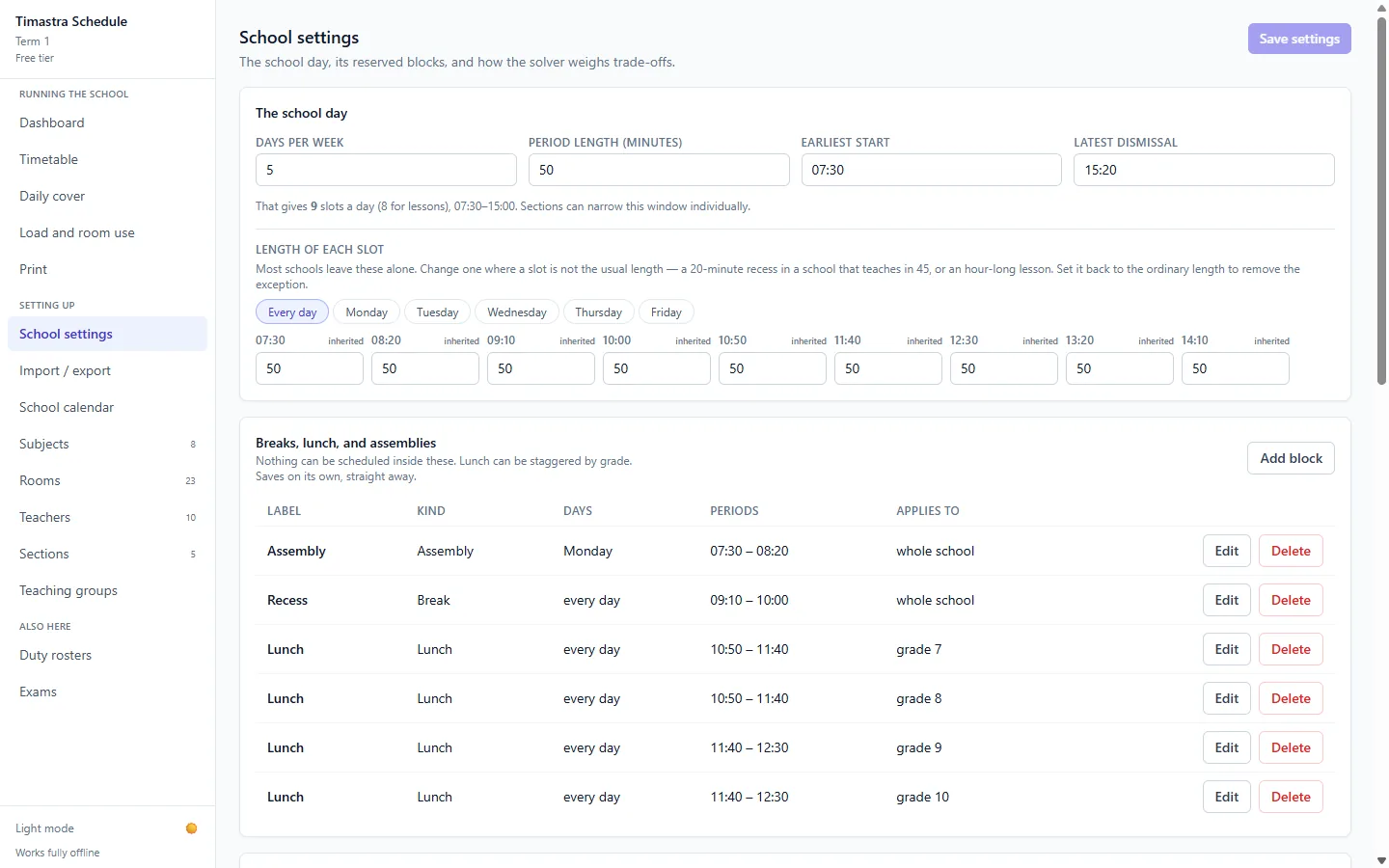
    Set the school day

    Timastra Schedule School settings screen for a fictional school: five days, 50-minute periods from 07:30 to 15:20, and reserved blocks for a Monday assembly, recess and lunches staggered by grade
    Choose the days, period length, earliest start and latest dismissal. Recess, lunch and assemblies are reserved blocks, so no lesson is ever placed inside them, and lunch can be staggered by grade.
  2. Step 2 · Set up

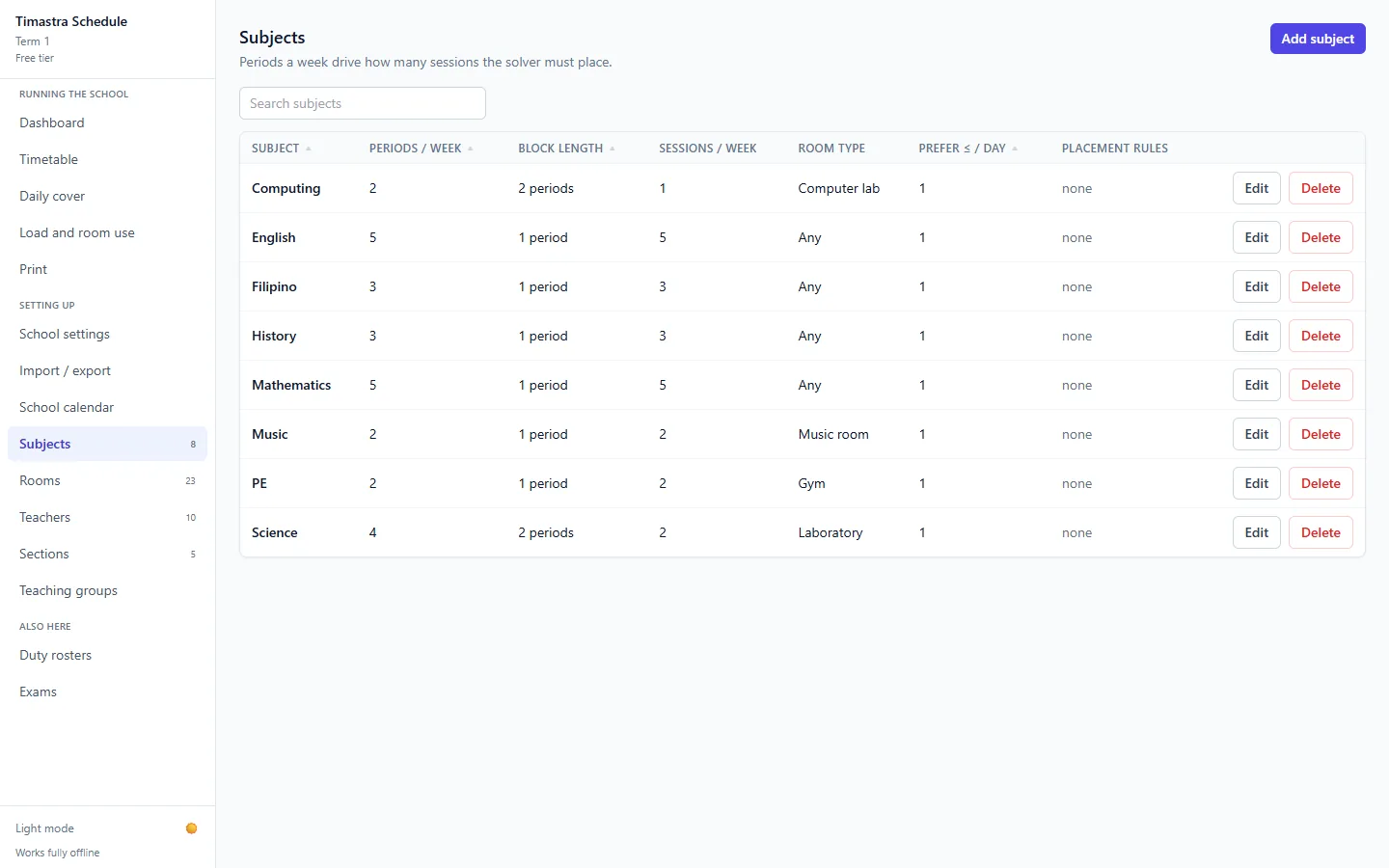
    Add subjects

    Timastra Schedule Subjects table listing eight sample subjects with periods per week, block length, sessions per week and required room type
    Each subject says how many periods a week it needs, whether lessons run as single or double periods, and which kind of room it needs, such as a laboratory, gym or computer lab.
  3. Step 3 · Set up

    Describe each teacher
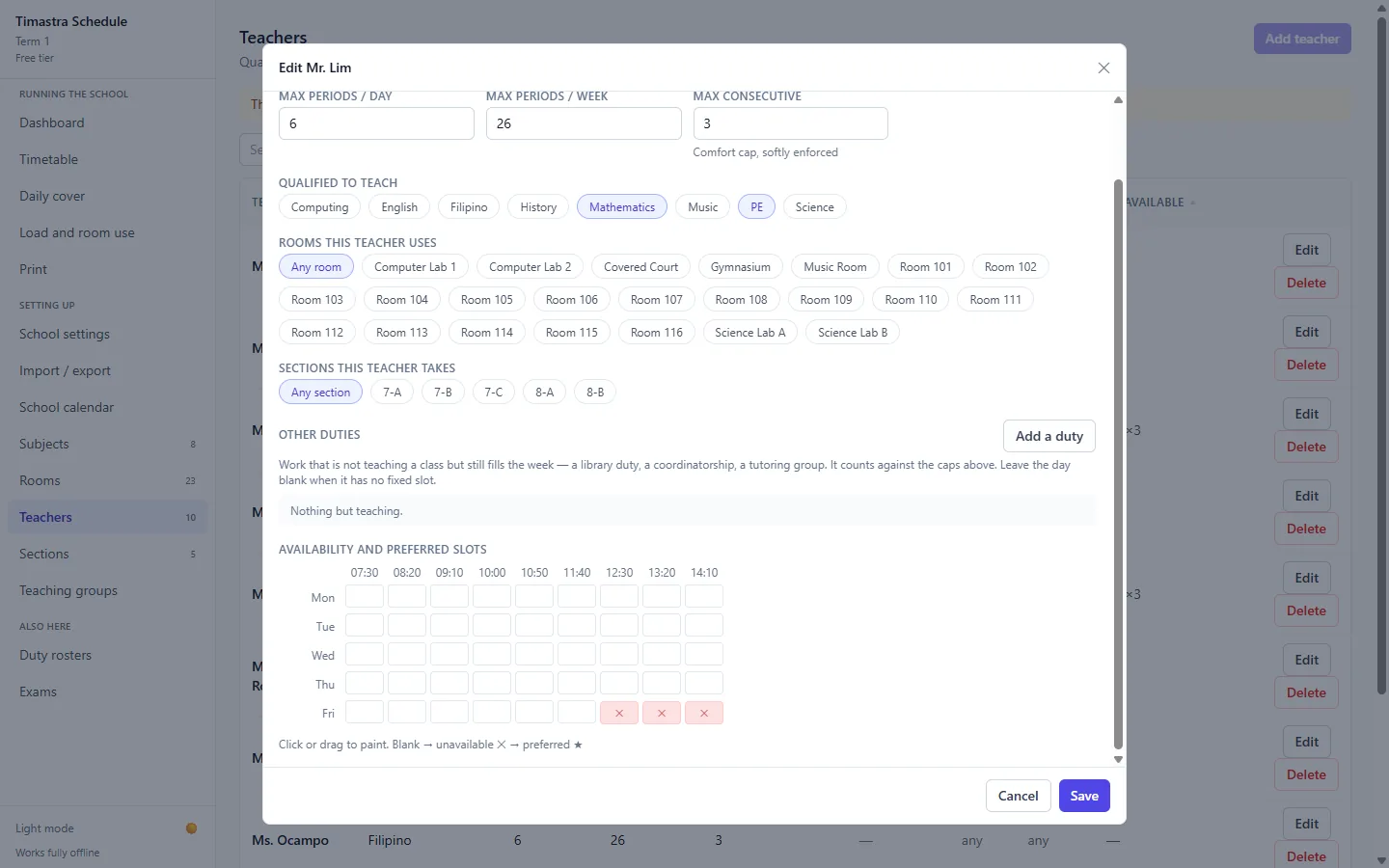
    Timastra Schedule Edit teacher dialog for a fictional teacher qualified in Mathematics and PE, with load caps and an availability grid marking the last three Friday periods unavailable
    Record what a teacher is qualified to teach, their daily and weekly load caps, the rooms and classes they take, and when they are unavailable. Here a fictional teacher cannot teach the last three periods on Friday.
  4. Step 4 · Generate

    Generate a timetable
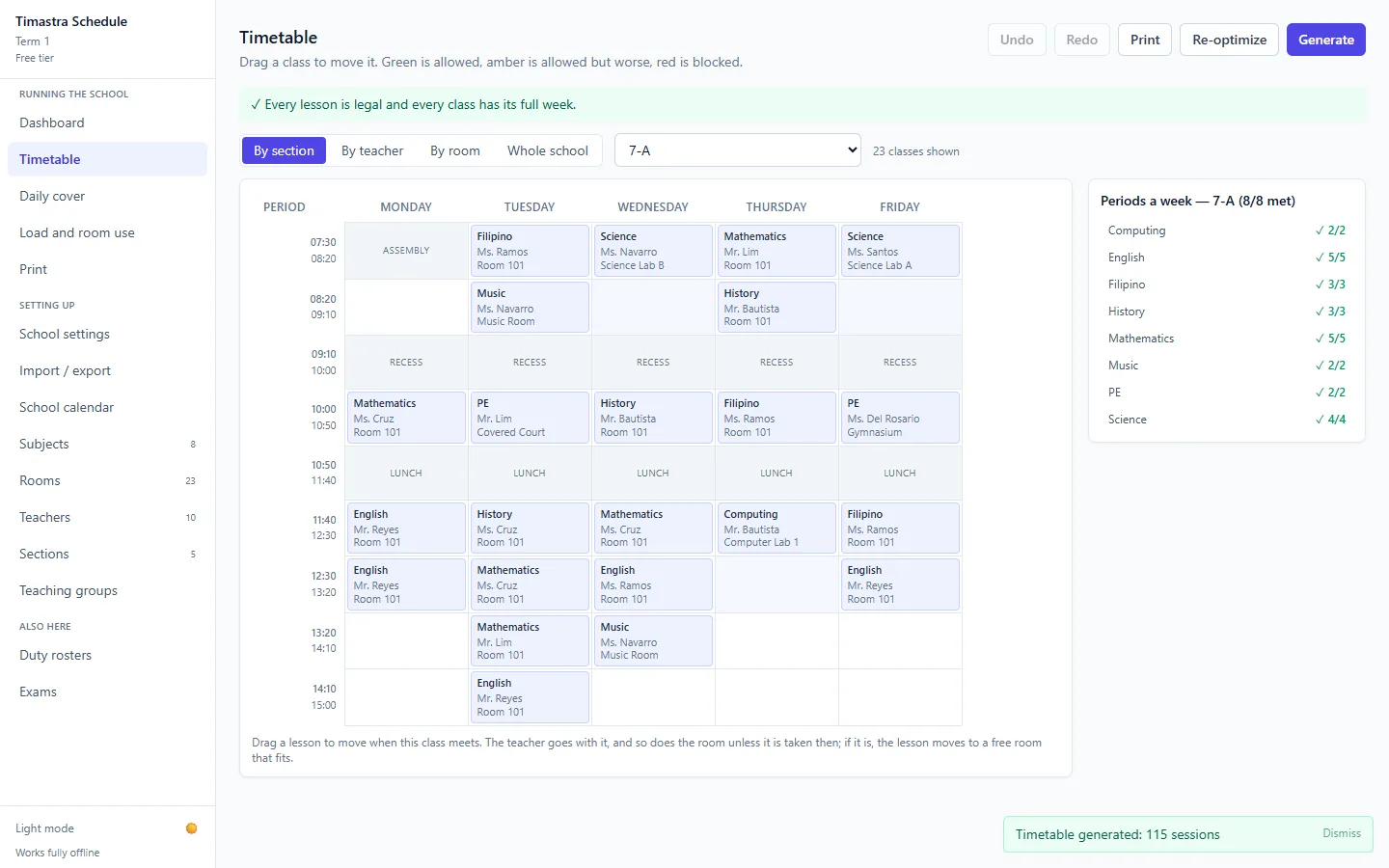
    Timastra Schedule weekly timetable for sample class 7-A after generation, with a message that every lesson is legal, a periods-a-week panel showing all subjects met, and a notice that 115 sessions were generated
    Press Generate and the app builds the whole week on your computer. It confirms that every lesson is legal and every class has its full week, and the side panel checks each subject's periods for the class you are viewing.
  5. Step 5 · Review

    Review the week from any angle
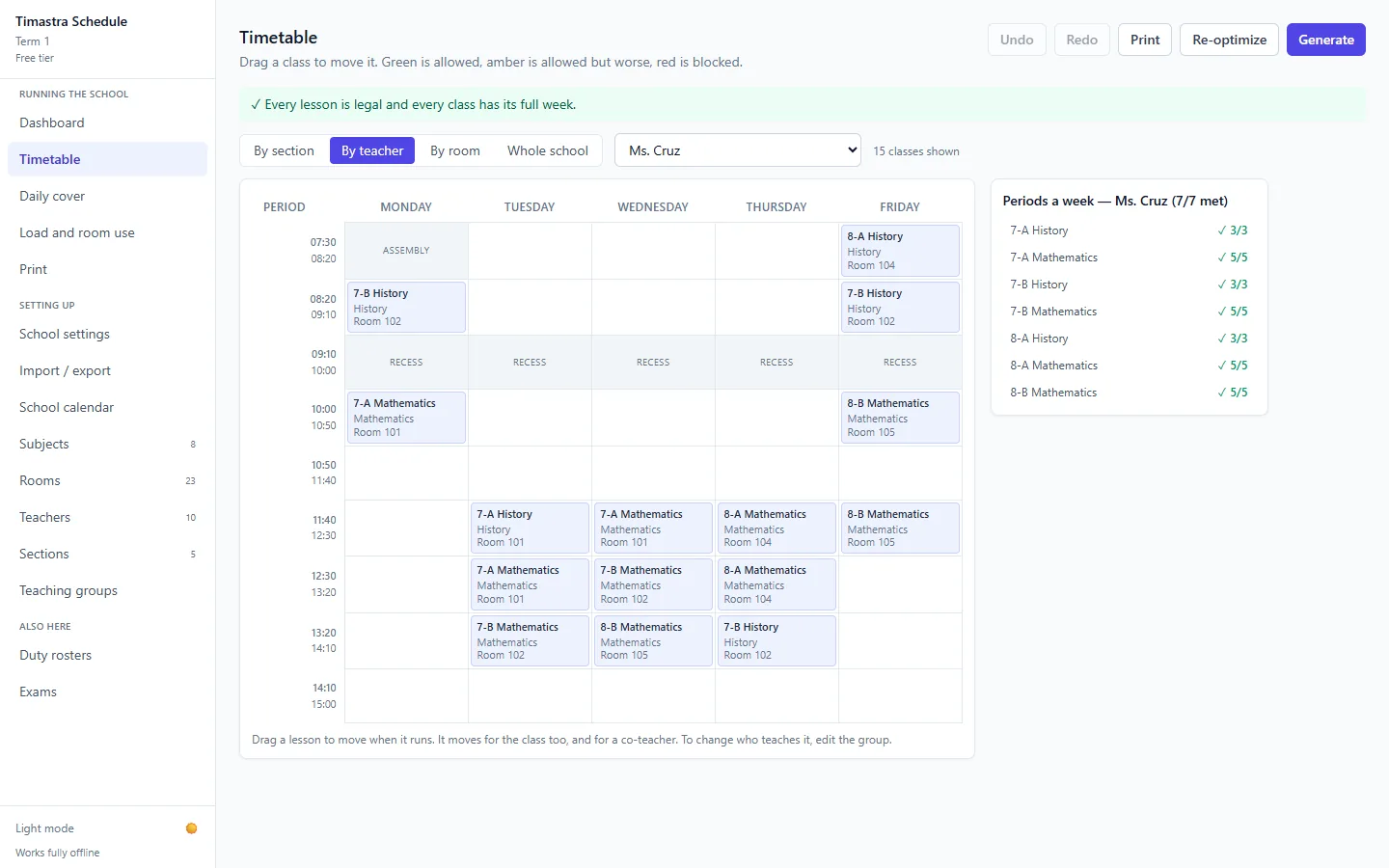
    Timastra Schedule timetable viewed by teacher, showing a fictional teacher's Mathematics and History lessons across the week and a panel confirming seven of seven assignments met
    Switch between section, teacher, room and whole-school views. This is one teacher's week, with each lesson's class and room and a check that all of their assigned periods are placed.
  6. Step 6 · Adjust

    Drag a lesson to a new time
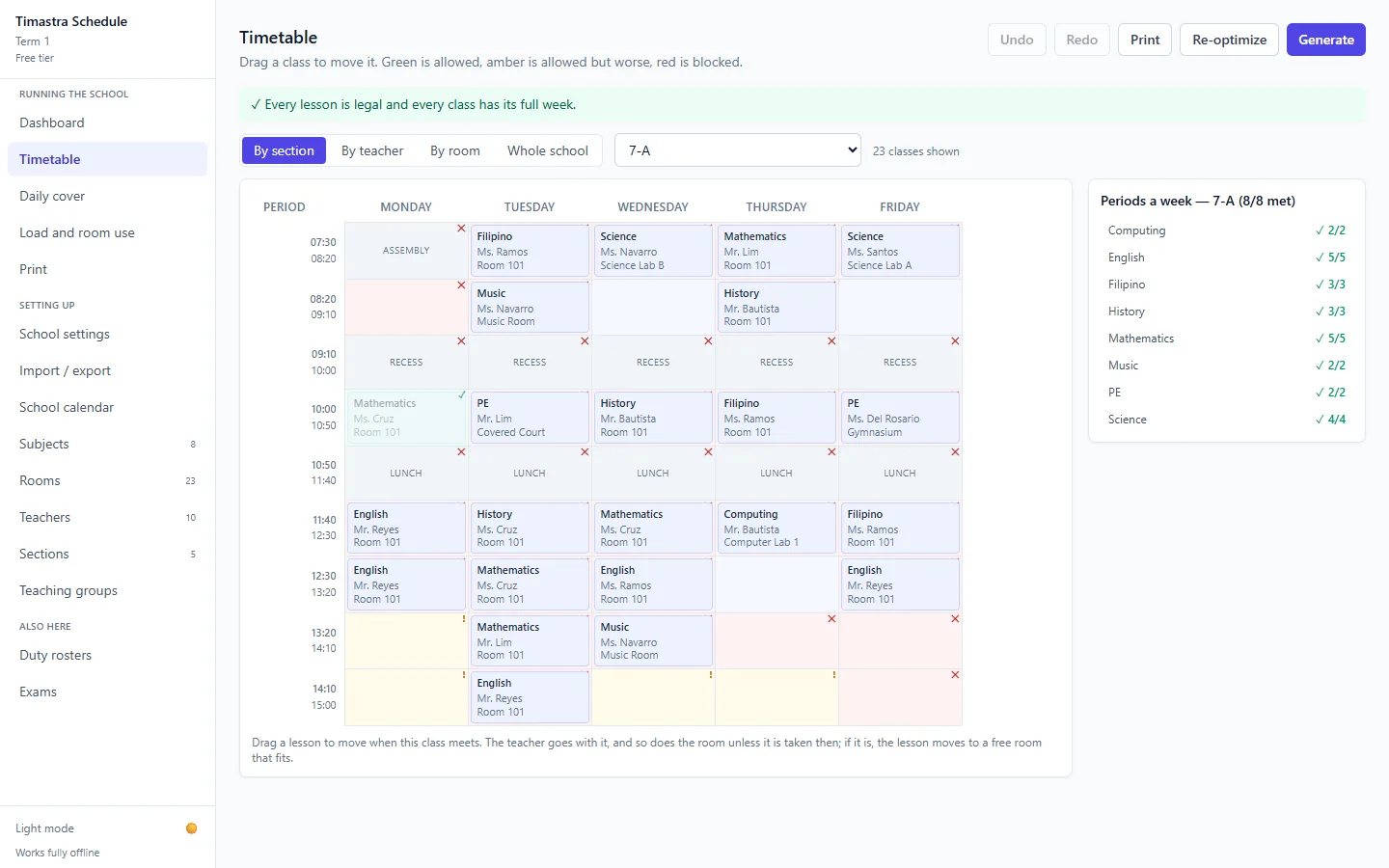
    Timastra Schedule timetable mid-drag of a Mathematics lesson, with blocked slots shaded red, allowed-but-worse slots shaded amber and the lesson's original slot marked allowed
    While you drag, every slot is checked against the rules: red slots are blocked and amber slots are allowed but make the timetable worse. Lessons you move keep their teacher and, where it is free, their room.
  7. Step 7 · Adjust

    See why a move is blocked
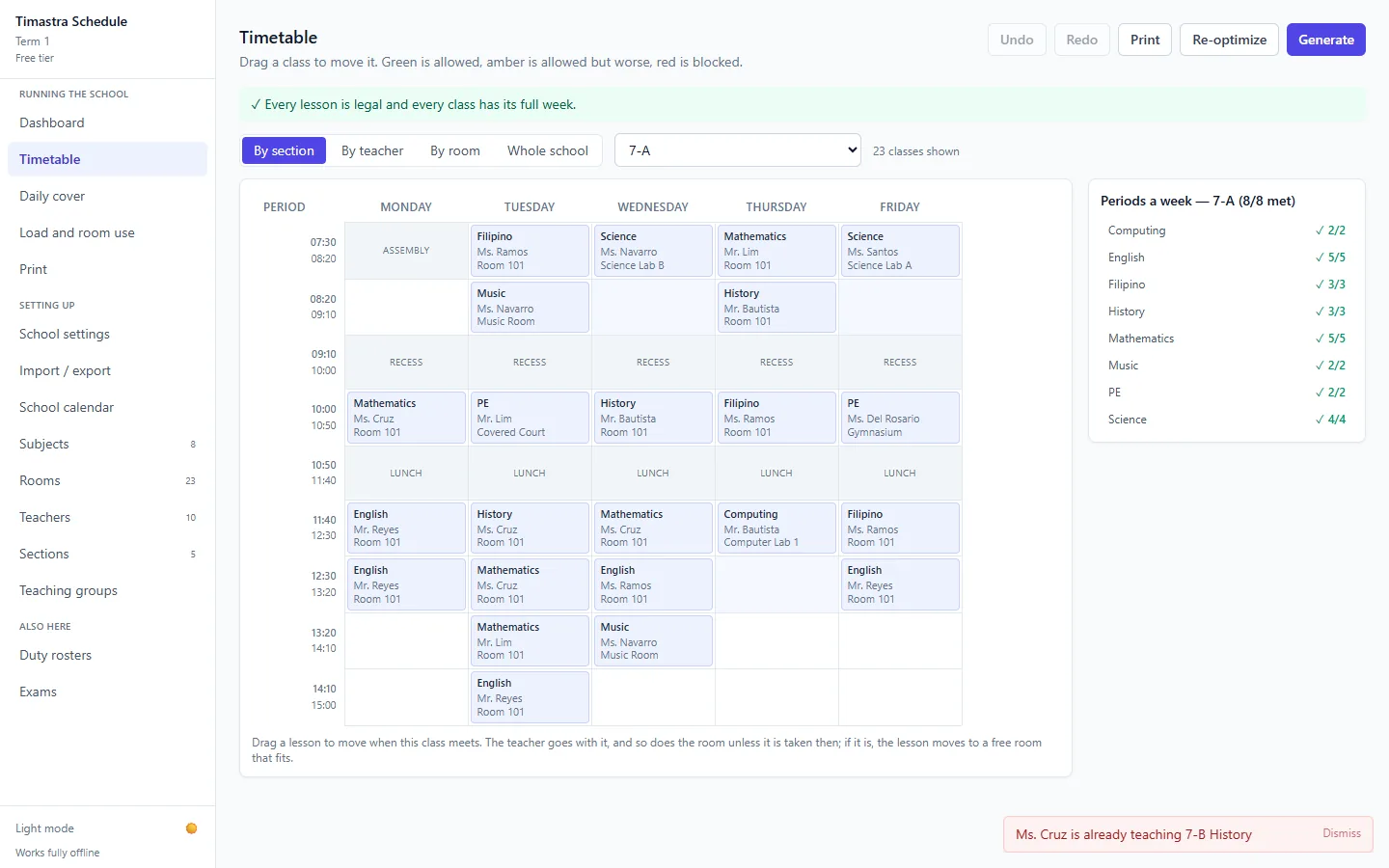
    Timastra Schedule timetable after a refused move, unchanged, with a message saying the fictional teacher is already teaching another class at that time
    Dropping a lesson on a blocked slot leaves the timetable unchanged and explains the clash, in this case that the teacher is already teaching another class then. Moves that go through can be undone.
  8. Step 8 · Share

    Print or save timetables for staff
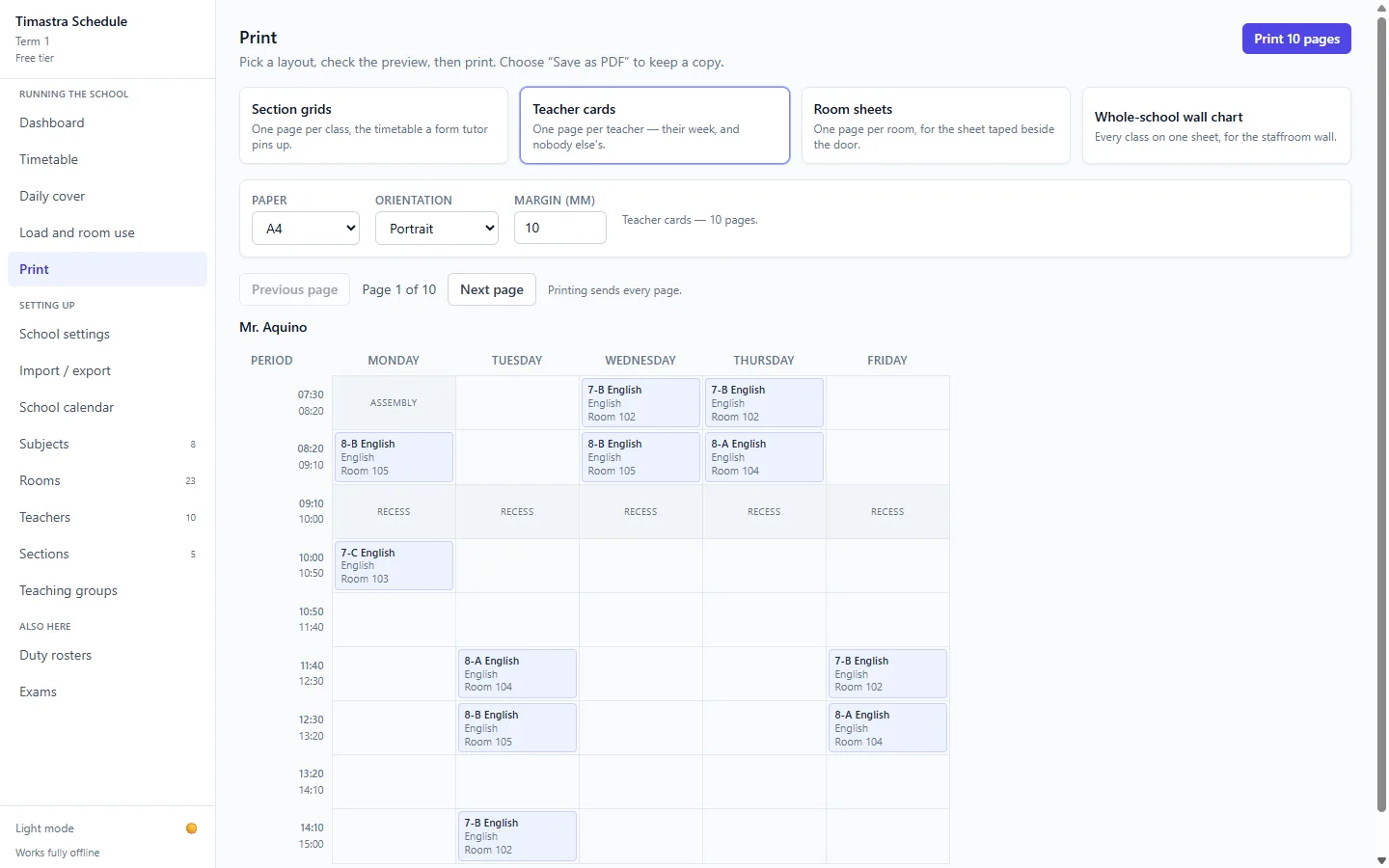
    Timastra Schedule Print screen with the Teacher cards layout selected, A4 portrait paper settings and a preview of one fictional teacher's weekly timetable
    Print section grids, one card per teacher, room sheets or a whole-school wall chart, or choose Save as PDF. Import and export can also write a folder of web pages and calendar files for every section and teacher.

Try it with your own school

The free tier covers up to 5 sections and 10 teachers with no license fee. A school license removes those limits for 12 months. Confirm installer availability and supported Windows versions for your school.

View Schedule pricing →Ask about access →

Features and questions about Timastra Schedule · All demos

timastra

Focused software for business, schools and everyday life.

Explore

ProductsPricingExplore demosMobile appsAboutContact

Get help

Product supportApp privacy & supportAccount & data deletionService status

Policies

Payments & refundsData & securityPrivacyTerms

© 2026 Timastra LLC
Independent software studio.

↑